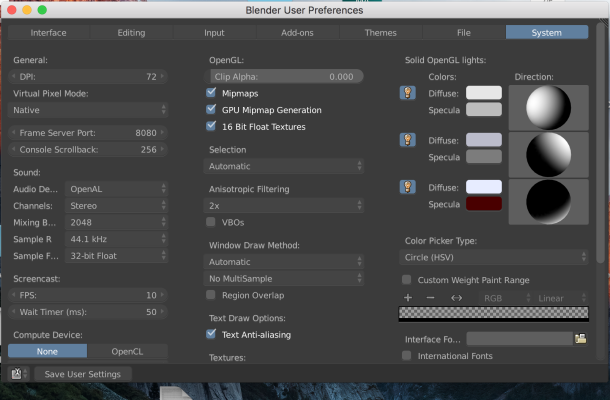
Working with heavy topology and large projects with too much geometry can slow down your viewport, which might be pretty irritating, especially when you have too much geometry and have to fix minor issues. This can be avoided by enabling VBO (Vertex Buffer Object), which is a nice feature in Blender. To make things simple, VBO is a straightforward process in OpenGL that uploads vertex data (position, normal vector, color, etc.) to the graphics card instead of the system memory. This can have a substantial impact on performance by reducing lag, it can also let your hardware handle more geometry because of a dedicated piece of hardware optimized for handling such tasks. Modern graphics cards are designed for handling the intense load (rendering, baking, etc). However, it is not recommended to have VBO enabled if you are using old graphics cards that have outdated drivers or those that the vendor does not support.
In Blender release 2.77, this feature is enabled by default and cannot be disabled (the option has been removed).
https://player.vimeo.com/video/33003769?app_id=122963
Enabling VBO
Go to File>User Preferences
Head over to the System tab.
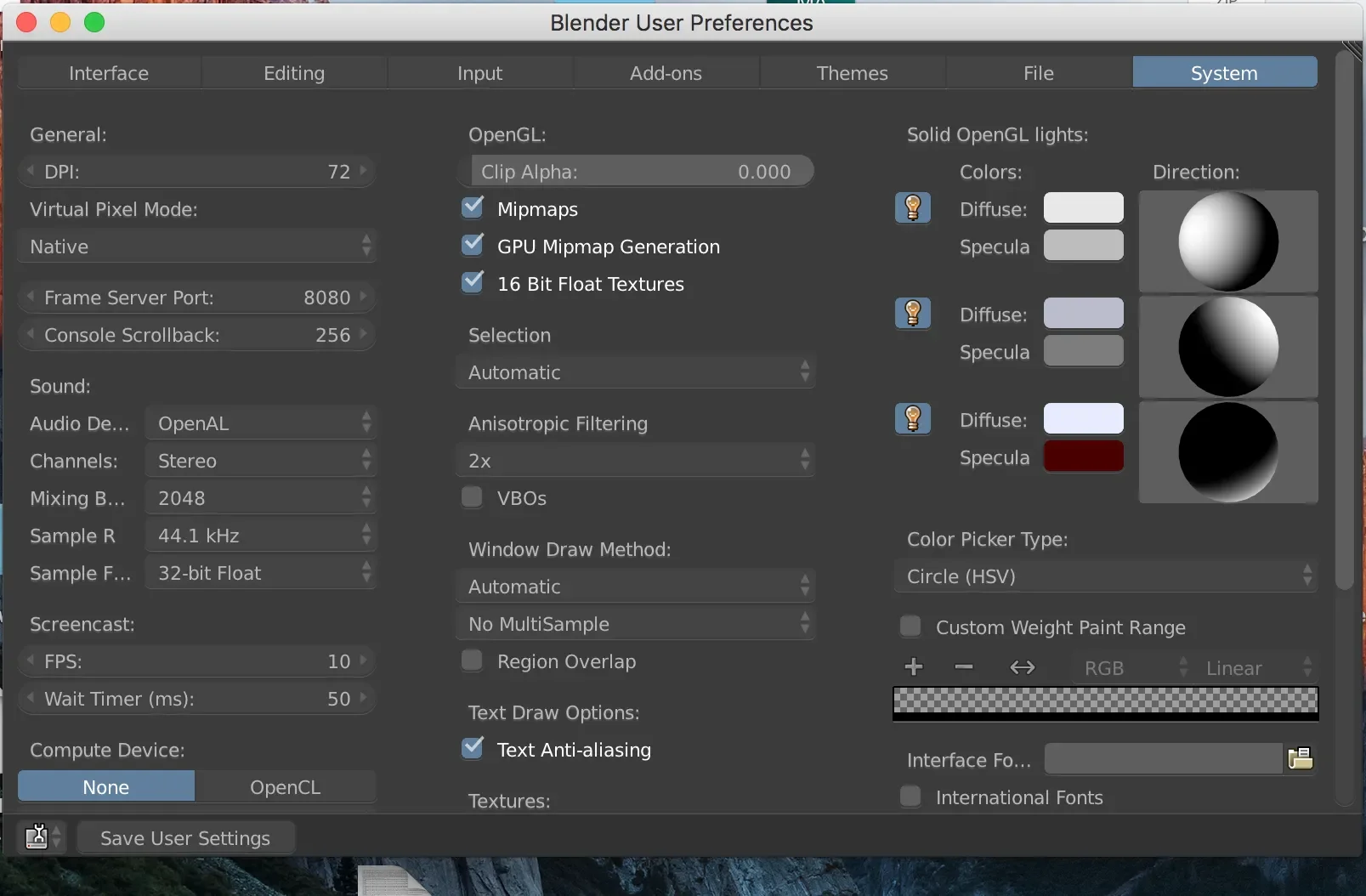
Tick the VBOs box, this will enable VBO.
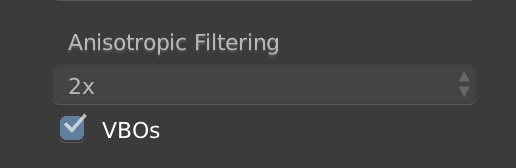
VBO has been enabled now you will see an improvement in performance. Thank you for reading. If you have any questions feel free to leave a comment below.
