Windows is known for auto restarting after downloading and installing updates, it mostly restarts when you have something important running on your laptop.
I work with heavy 3D animation scene and keep the rendering process on my laptop in the night, so when I wake up it has made good progress or completed, night is the time when Windows discovers there is no user activity and does not care if there is a process occupying system resources.
I don't think the update manager is smart or identifies system critical resource being used.
I spend many hours trying to see how I could stop this from happening and after multiple failed attempts I think I figured out how to stop Windows updates from restarting the computer, this will let you have longer uptime and you will control when your machine should restart.
This will finally let you be the person in control of your computer and not a corporation that sends updates to add features and enable things that they think you need to have on your computer.
This process requires you to edit Local Group policy, if at any point you would want to revert to the earlier setup, take notes of changes you are making to so you can revert easily, and if you any have question that crosses your mind feel free to leave a comment below, I reply as soon as I can, mostly I am working on my laptop.
Open Local Group Policy Editor, you can do this by searching for it or by running.
To open run, press Windows key + R, and enter gpedit.msc in the prompt.
gpedit.msc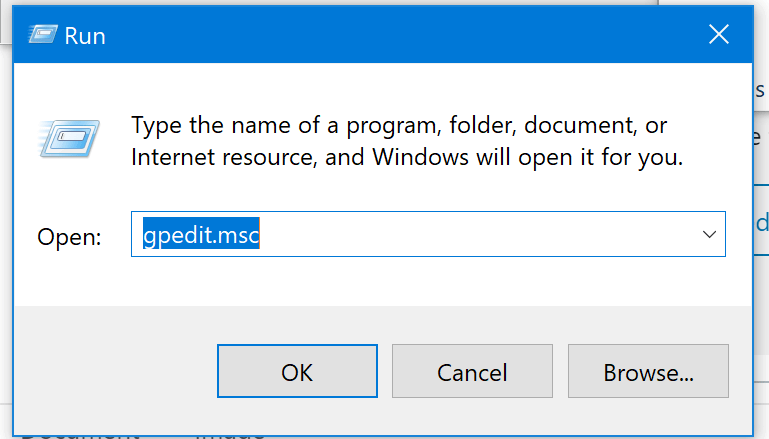
Example of the run process
This command should open a window that looks like the screenshot below
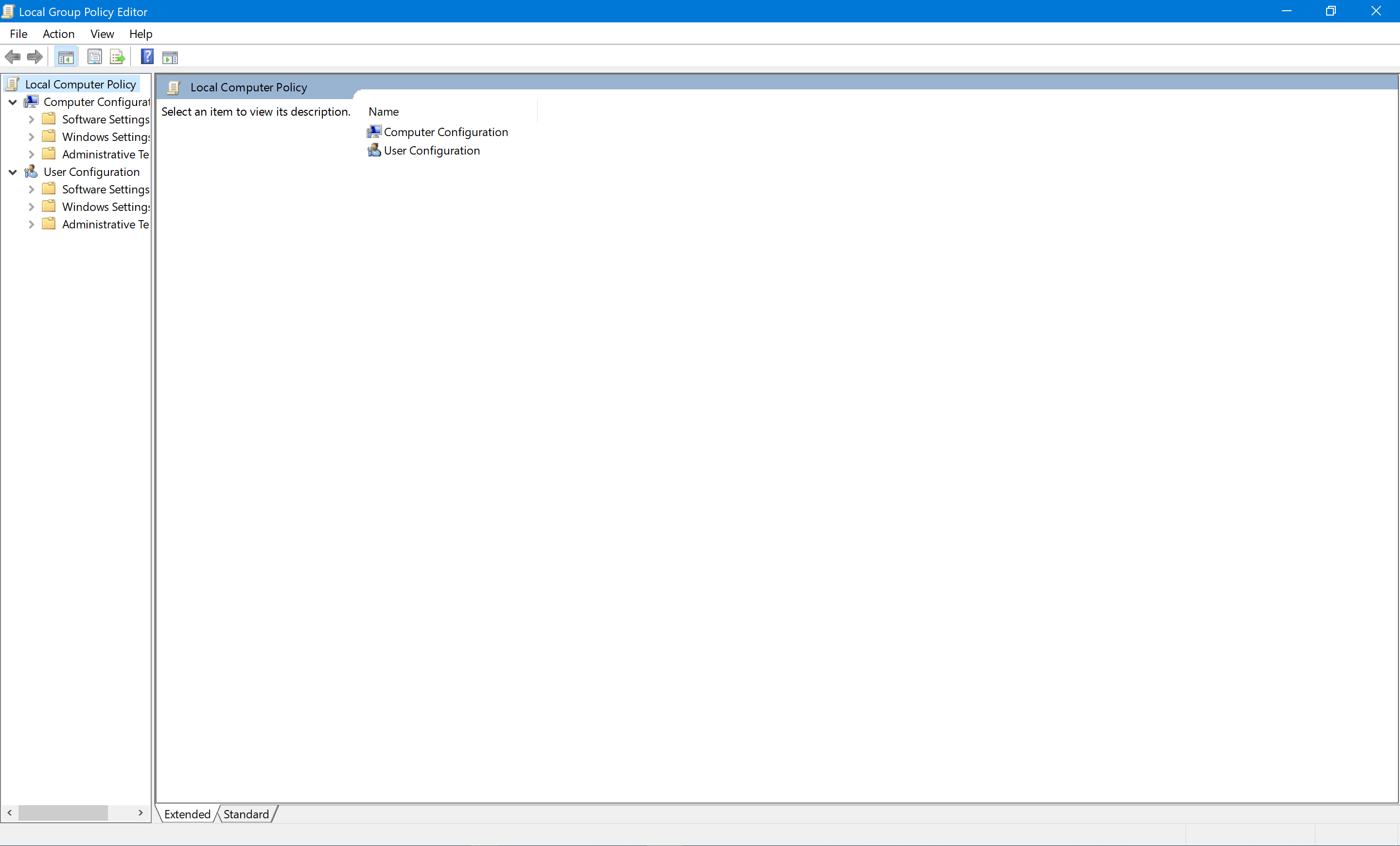
The home of Local Group Policy Editor
Go into Computer Configuration tab under Local Computer Policy
Go into Administrative Templates under Computer Configuration.
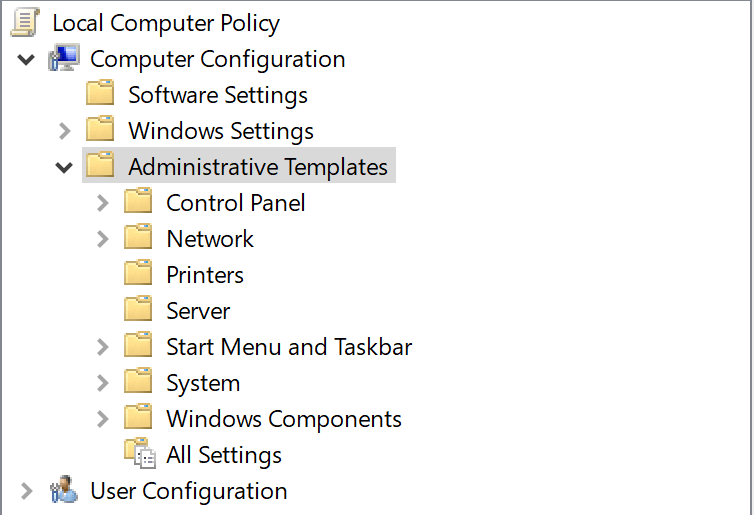
The Adminstrative Templates.
There should be a huge drop down list.
Go into Windows Components under Administrative Templates.
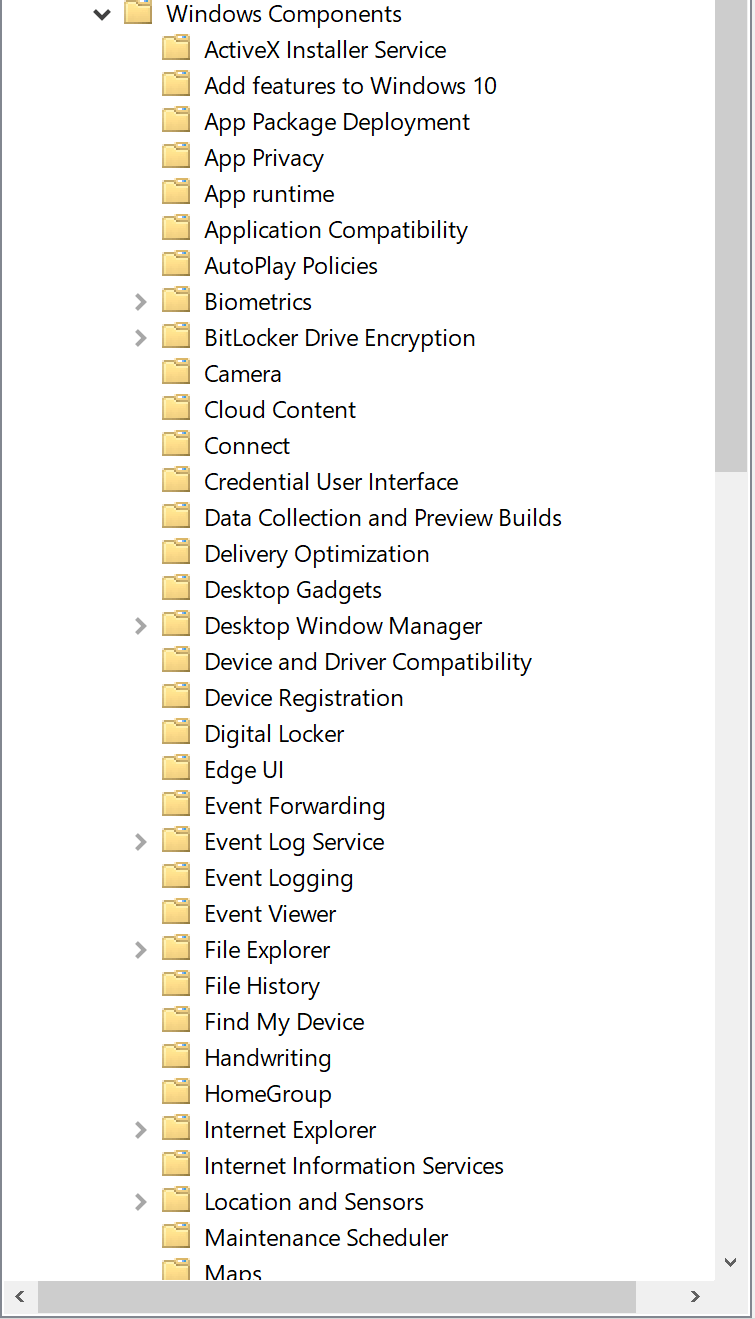
Scroll through this list for Windows updates.
You might have to scroll through the list and go to Windows Updates under Windows Components.
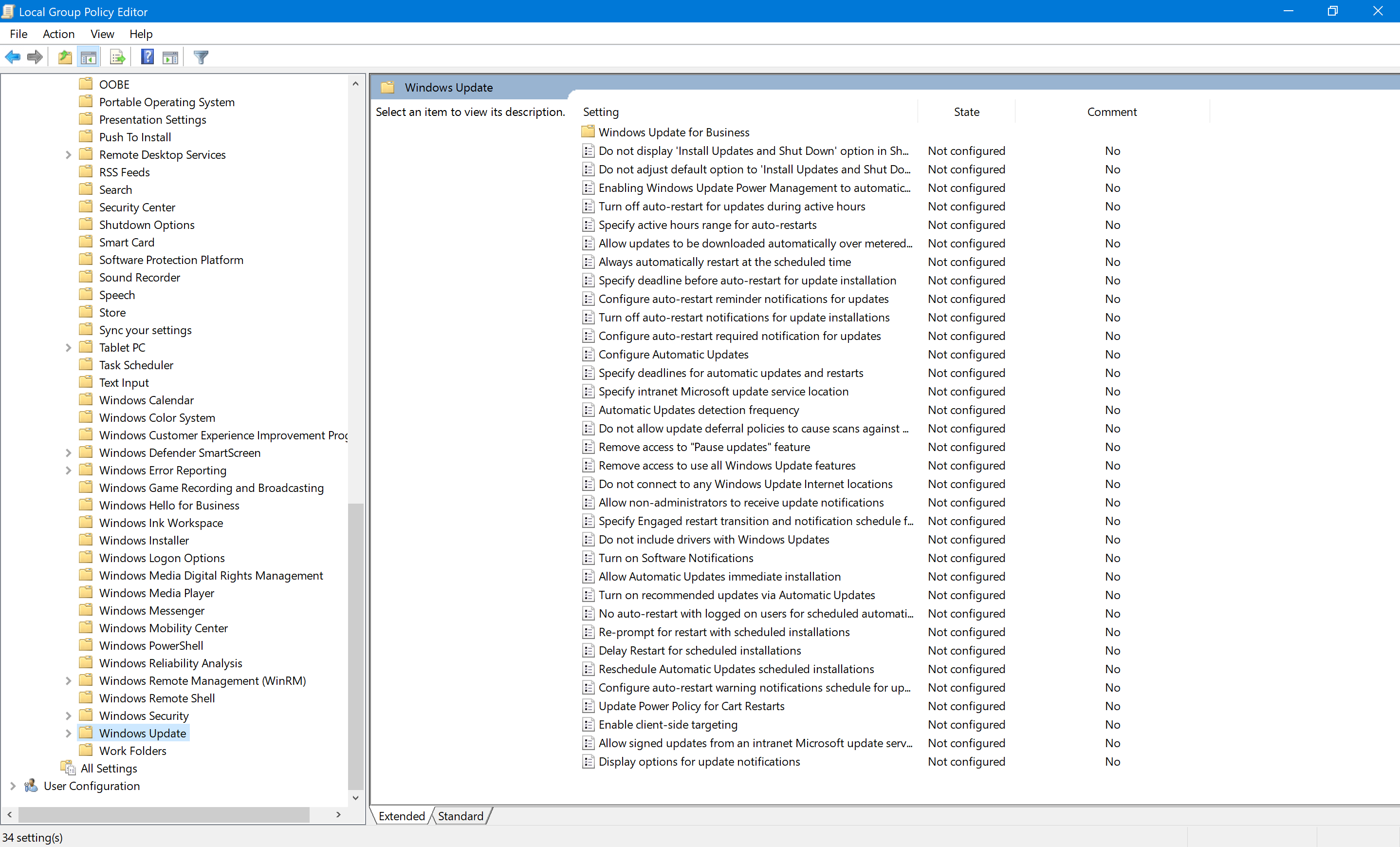
We need to change a few of these settings, some of them are optional.
Go to file that says the following, shown in the screenshots below.

By default it is not configured, enable it.
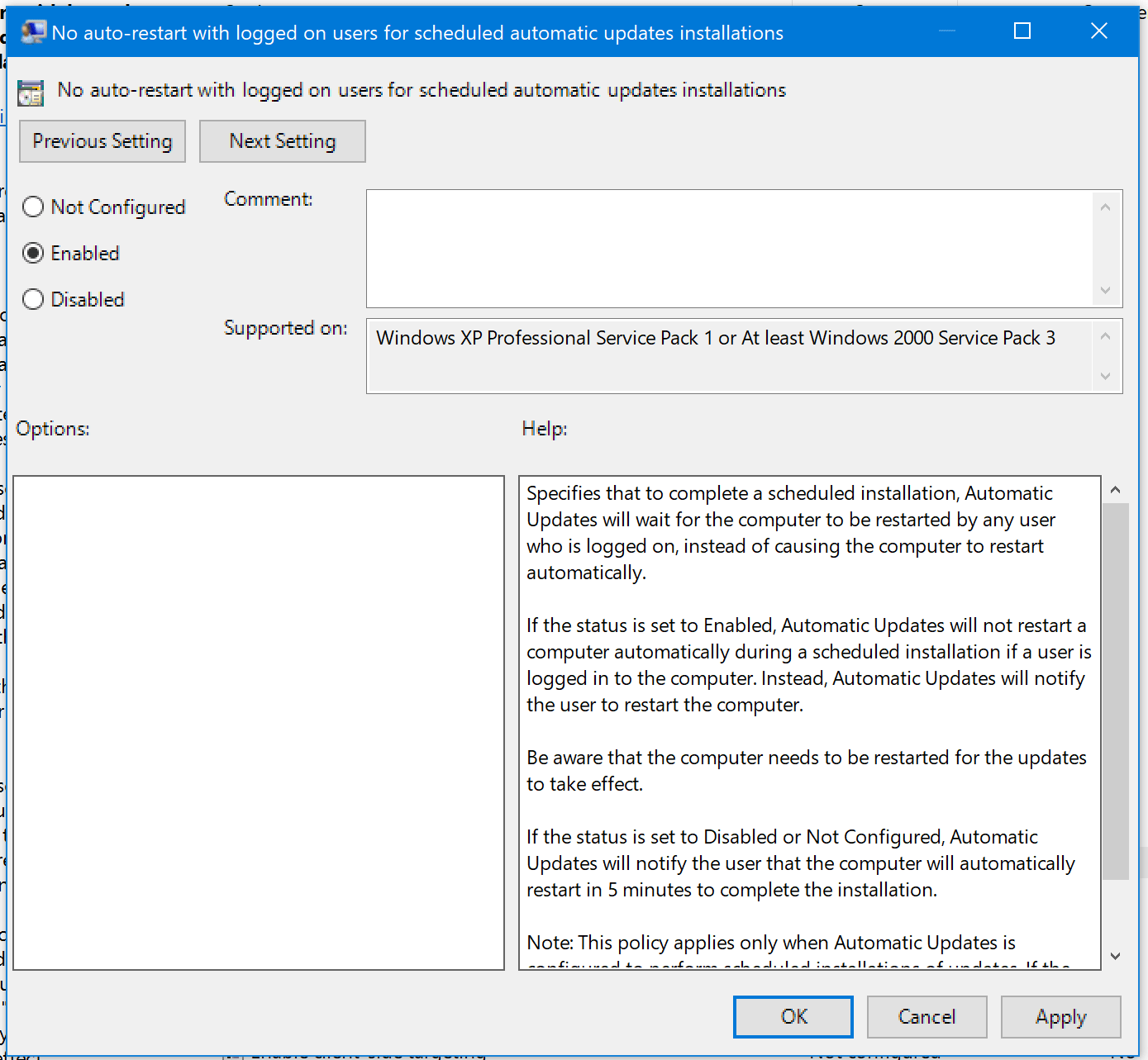
Enable it and apply.

By default it is not configured, disable it.
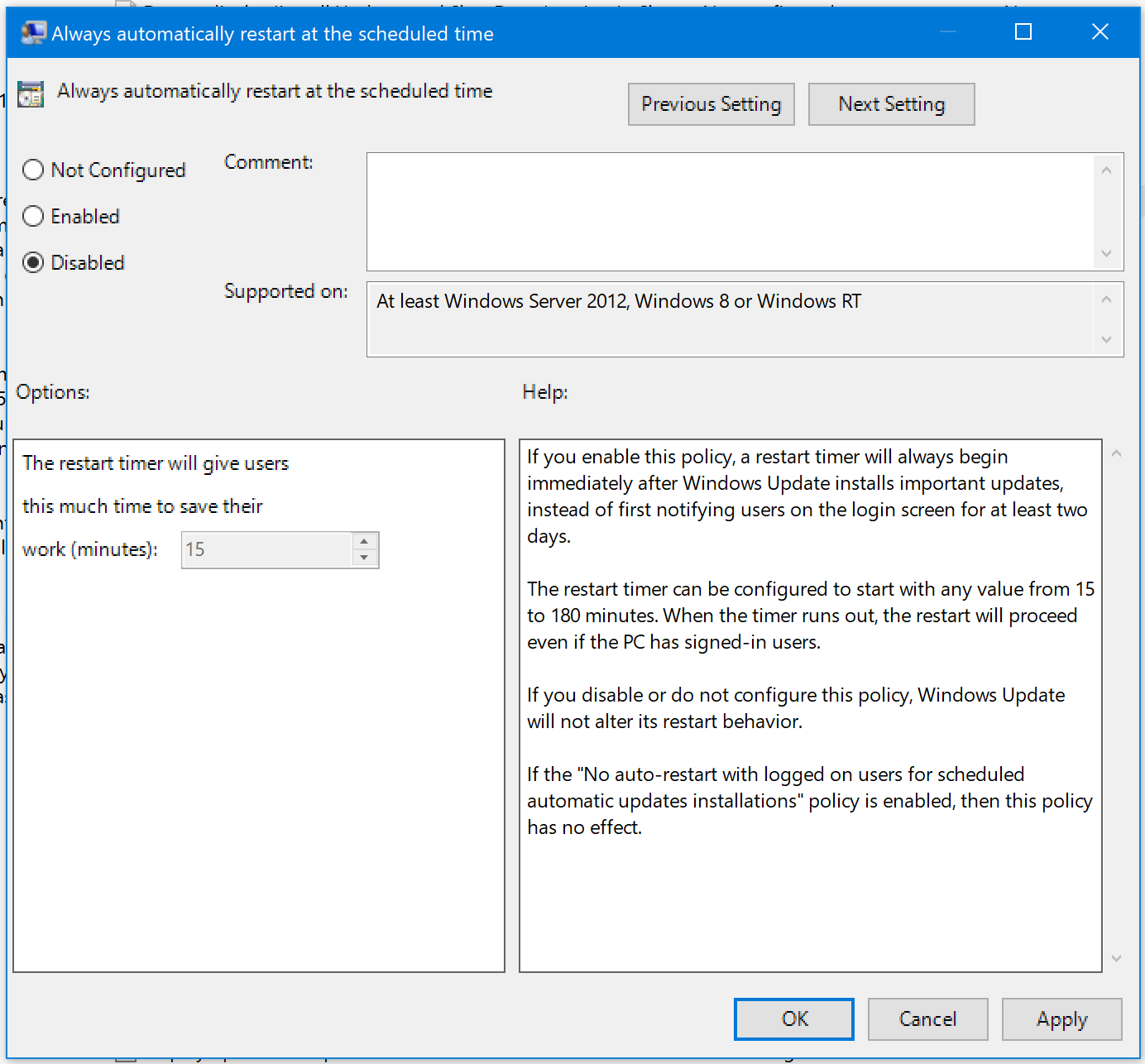
You can even go further and disable the notification, if you are like me and prefer to not be notified on things that should not require your immediate attention.
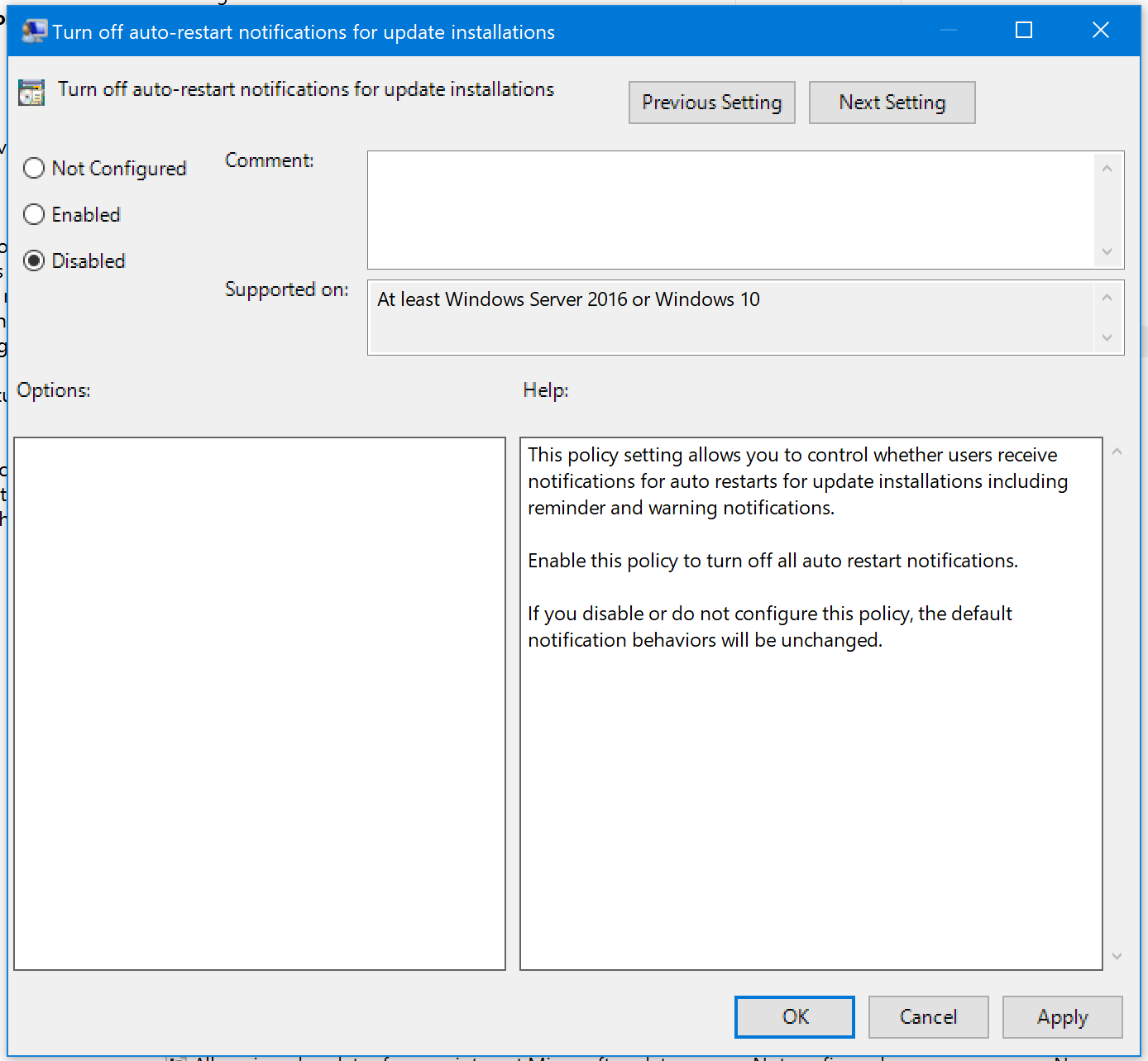
Go to the setting below, shown in the screenshot.

Disable it if you don't want to recieve notification for auto-restart since the system won't auto restart after all that we have done.
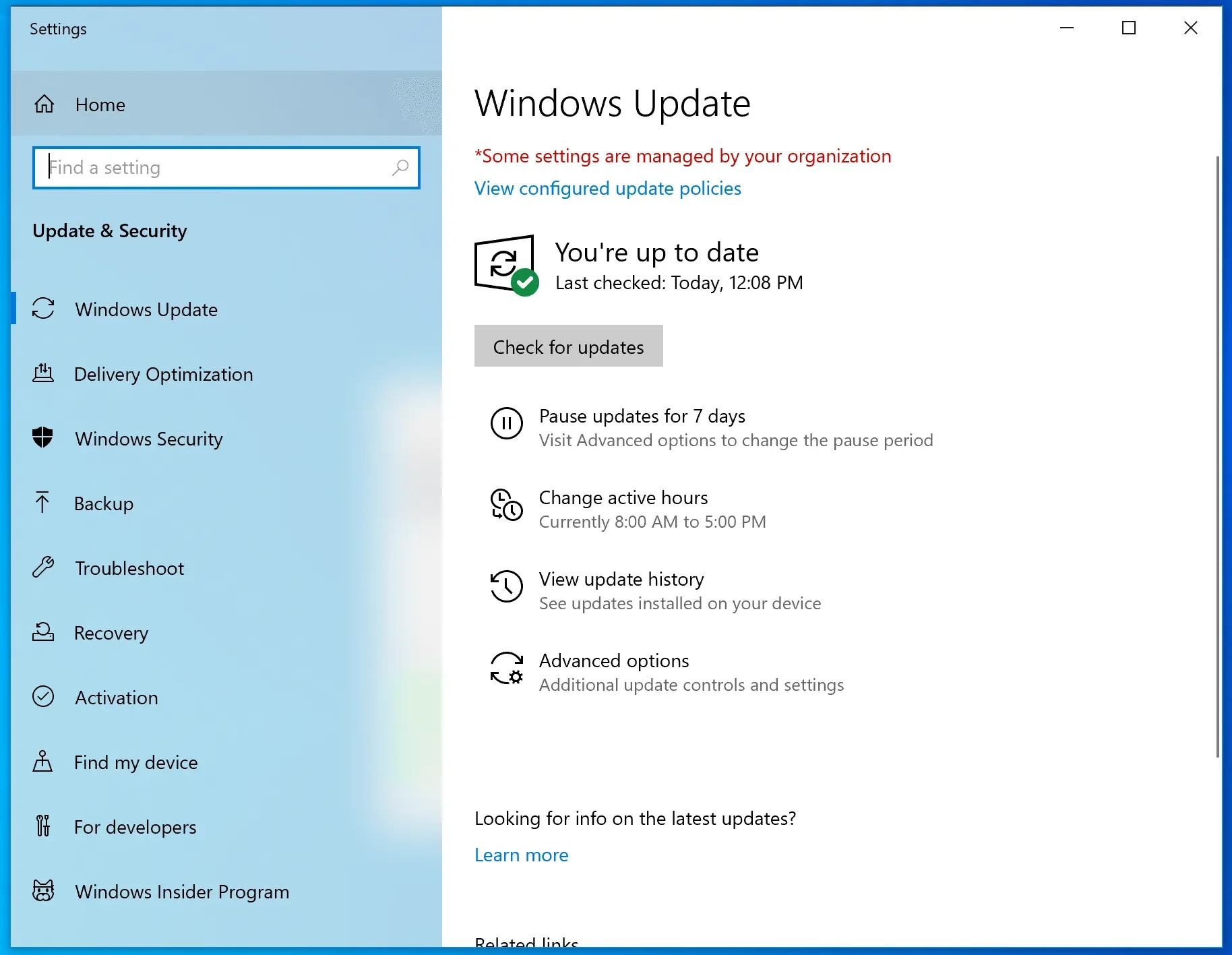
After all the changes you have made, the Windows Update section in the Windows settings app should show you a red information status, stating "*Some settings are managed by your organization"
That's it folks, thank you for reading, if you have any questions, comments or requests for an article feel free to leave a comment below, articles are published ever Monday at 9 AM, New York Time.
