How to Create a Viewport Render (Playblast) in Blender
Producing a final render can be hardware-intensive and time-consuming. If you just need a quick preview of your mechanics or want to share progress with teammates, waiting for a full render isn't practical. The alternative is a viewport render, widely known as a playblast among animators.
A viewport render is incredibly fast because it uses OpenGL to draw the scene. It also gives you the option to render helper elements that are normally hidden in a final output—like empties (null objects) and armature rigs. This makes it perfect for displaying underlying mechanics in animation showreels or for quick team feedback.
(Note: The specific menus below apply to Blender 2.7x. In Blender 2.8 and newer, this feature has been renamed to Viewport Render).
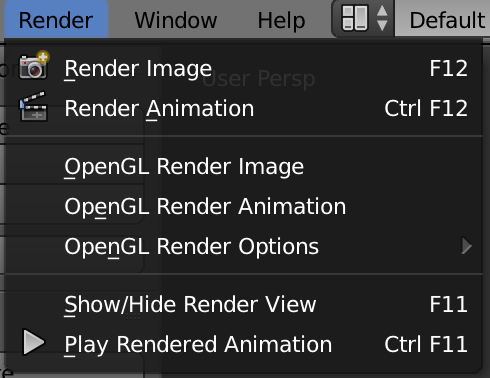
In older versions of Blender, this feature is called the OpenGL Render. It provides two main options: OpenGL Render Image for a still frame, and OpenGL Render Animation for a video sequence.
How to Render a Viewport Image
- Go to the top menu and select Render > OpenGL Render Image.
- Alternatively, you can click the small camera icon directly in the viewport header to bypass the menu entirely.
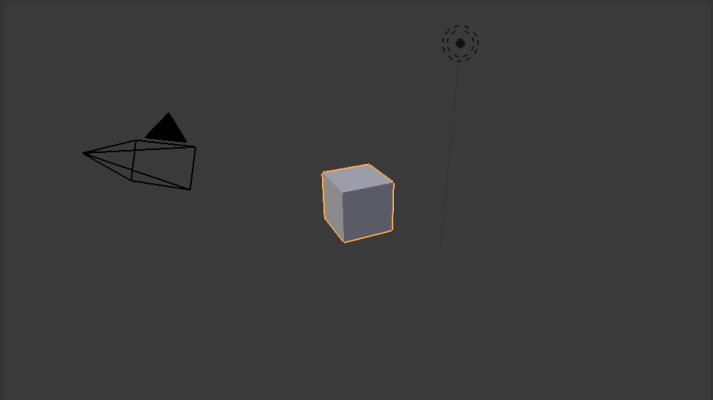
The default scene should look something like this:
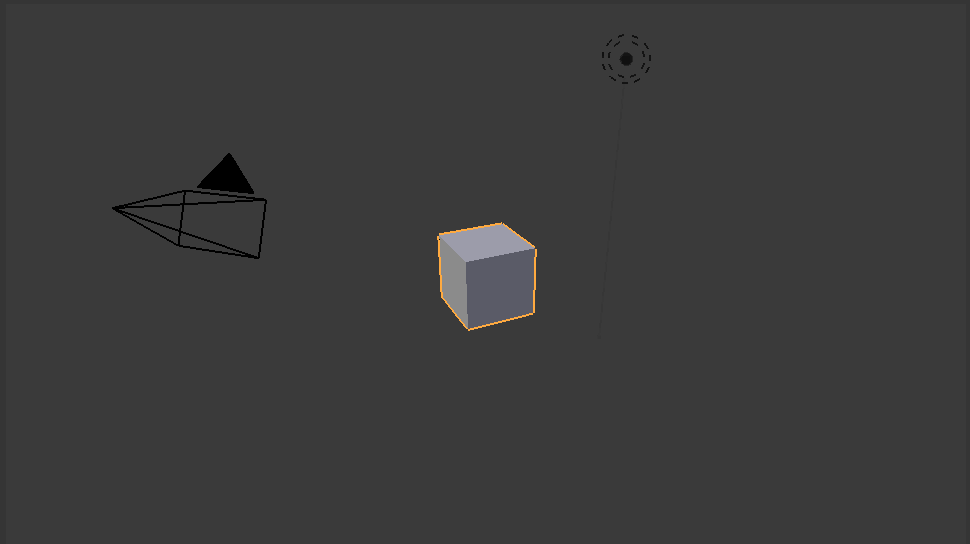
By default, an OpenGL render captures exactly what you see on your screen, much like a screenshot.
Customizing Your Viewport Render Settings
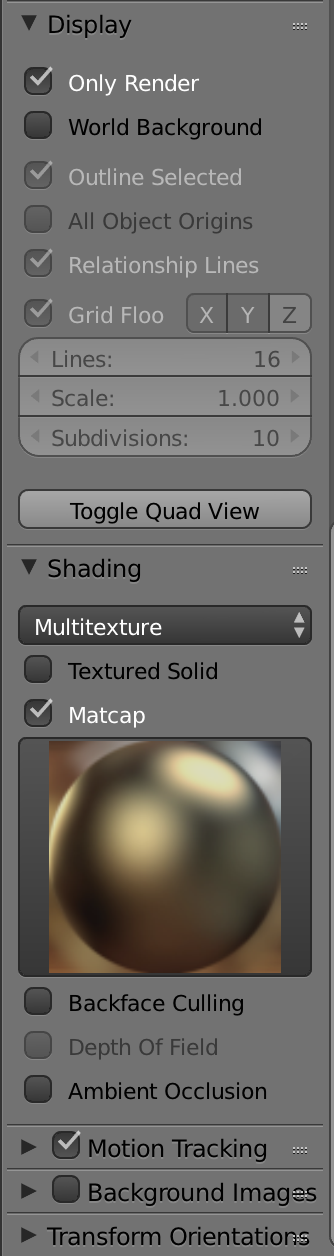
Controlling the look of your viewport render is simple. The display settings are located in the N-panel (the properties region on the right side of the 3D viewport):
- Visual Effects: You can assign features like Ambient Occlusion and MatCaps to make the untextured geometry easier to read. These will show up in your executed viewport render.
- Hiding Elements: If you want to hide the grid, empties, and cameras for a cleaner look, simply check the Only Render box in the display settings.
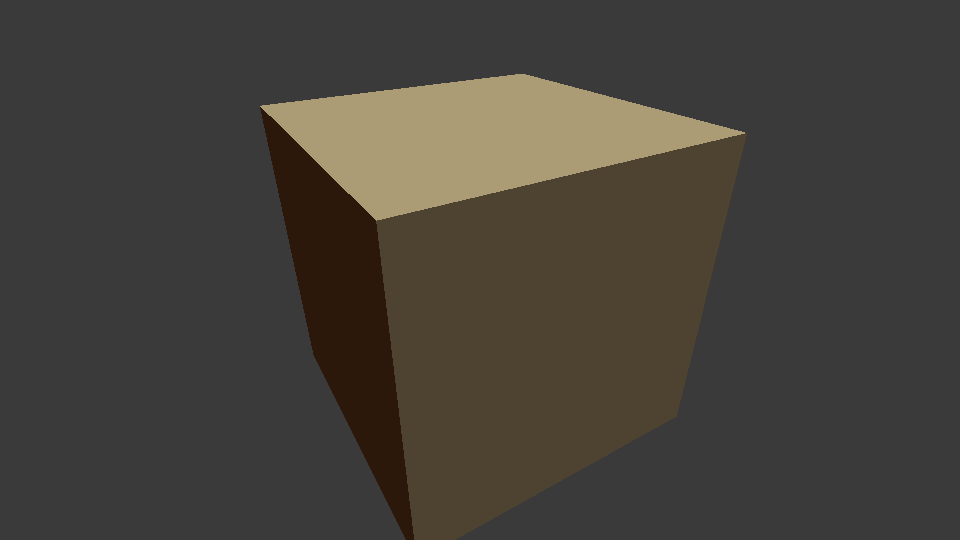
A customized viewport render of the default scene using a MatCap looks like this:
